Adding a New User
This content is only relevant for users with Admin access. If you believe you should have access to these settings, please contact your manager.
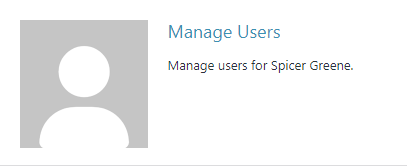
1.) Select the “Manage Users” tile from your Diamond Bar dashboard
2.) Select “Add New User” at the top of the screen

3.) Use the second form on this page and select a unique username, the employee’s email address and the appropriate role.
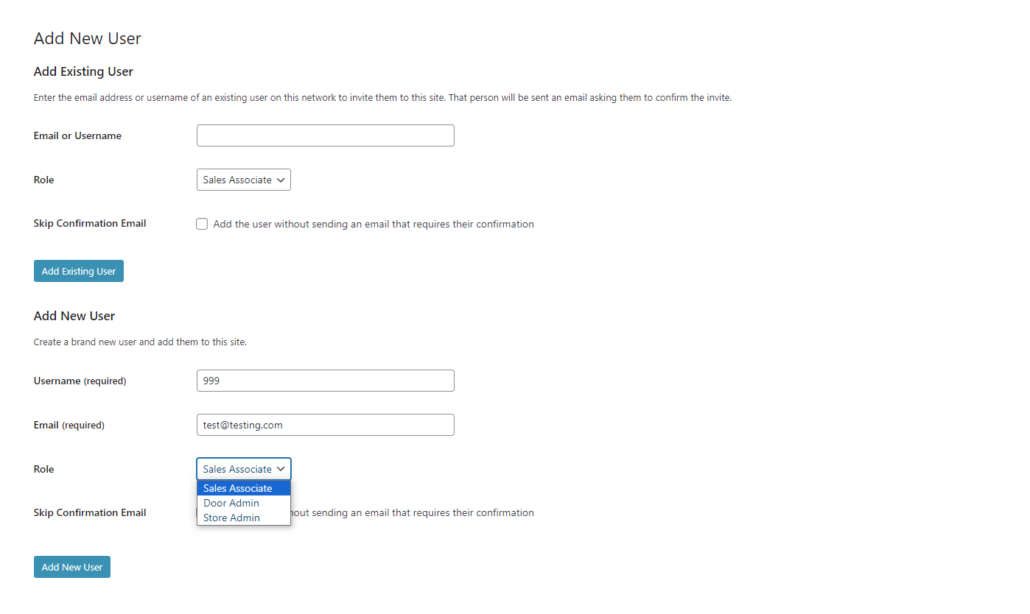
The permissions are as follows:
Sales Associates
- Tasting Tool Front End (full package only)
- Leads Generator
- Diamonds Check In (full package only)
- Associate’s FMDV (Find My Diamond’s Value) w/ Guaranteed Buy Price
- Training modules
Door Manager (same tools as Sales Associates, plus:)
- Reports
- Website Settings
- User Management
- Inventory Management (full package only)
Store Managers will have access to all of the Diamond Bar tools plus admin access to all of the Doors within the Store.
4.) When finished, select the “Add New User” button to send a password reset email to the employee.